Guide · Updated September 26, 2026
App download QR codes for print: a launch checklist
To put one app download QR code on a flyer, poster, or package, encode a device-aware HTTPS link. Configure the iPhone, Android, and desktop destinations behind that link, then test the final printed artwork on real phones before ordering the print run.
By appqr.io · Product guidance from Appik Studio
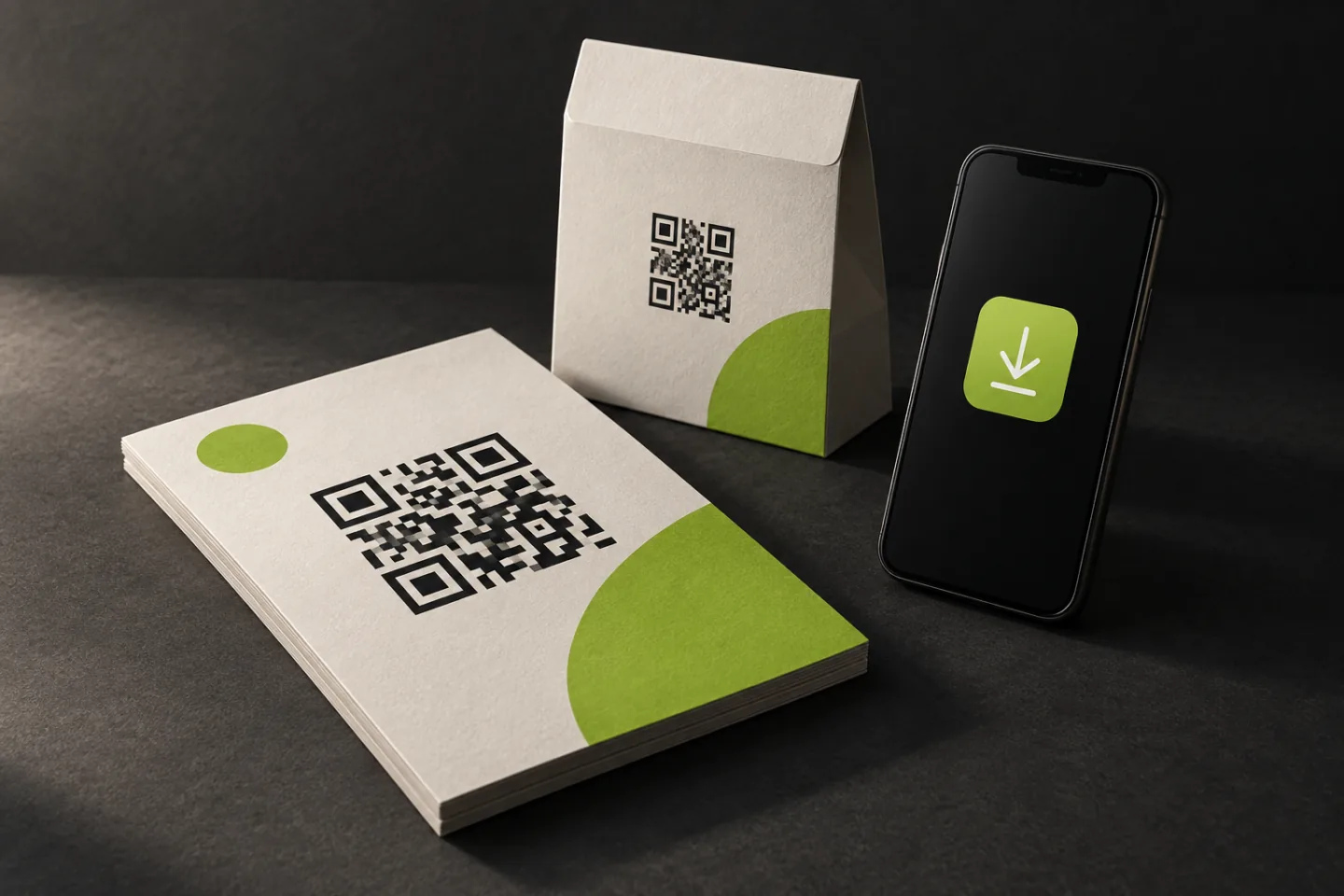
1. Choose the URL to print
A QR code contains data, usually a URL. It does not choose an app store by itself. If you encode an App Store URL, every scanner receives that same Apple URL, including Android users. A smart link makes the routing decision after someone opens it.
In appqr.io, create a link with your public App Store and Google Play listings and a desktop fallback. Copy its public download URL into the free app-store QR code generator. Generating a QR image from a store URL alone does not create a smart link.
Keep the shared URL stable. Edit the destinations behind it if a listing changes; changing the link itself would require new artwork. The printed symbol can remain the same only while the encoded URL stays active and under your control. Our one-link setup guide covers the routing steps.
Use a listing for the released app, not a TestFlight invitation or a private testing track. For Google Play, the listing URL uses https://play.google.com/store/apps/details?id=YOUR_PACKAGE_NAME. Check the package against Google's supported link format, then open both listings without your developer account signed in.
2. Give the code room to scan
Start with dark modules on a plain, light background. Keep text, borders, patterns, and trim lines outside the code's clear margin. DENSO WAVE specifies a quiet zone of four modules on every side. A module is one small square in the QR grid; four modules is not a fixed number of millimetres.
There is no single print size that guarantees every phone will scan a code. The grid density, print quality, camera, and scanning distance all matter. A code on a hand-held card and one on a wall poster need different tests. Reserve space in the layout early, then approve the size using a physical proof at the distance your audience will use it.
Use an SVG or a properly sized PNG
Using our free generator? Its default artwork is lime on a dark background, and the space around its preview is not exported as a quiet zone. Download the SVG and prepare it in your design tool: use dark modules on a light background, then add a clear margin of at least four modules on every side. Check the exported file itself before sending it to your printer.
Export SVG when your printer or design tool accepts it, so the artwork can scale without pixelation. If you use PNG, calculate the required resolution at the final printed size. At 300 pixels per inch, a 30 mm square image needs at least 355 pixels per side:
30 ÷ 25.4 × 300 = 354.33 → round up to 355 px
This is an image-resolution example, not a minimum scannable QR size. Include the clear margin in the artwork, follow the printer's export requirements, and inspect the final PDF for softened edges or cropping. The free generator's PNG is 240 pixels square, so use its SVG for the 30 mm, 300 ppi example above. Do not enlarge a screenshot of a small preview.
Test any logo, rounded dots, or brand colours on the final material. Glossy coating, folds, and curved packaging can make a design harder to scan. If a branded version fails, simplify the artwork and repeat the physical test before committing to it.
3. Test the destination and the printed proof
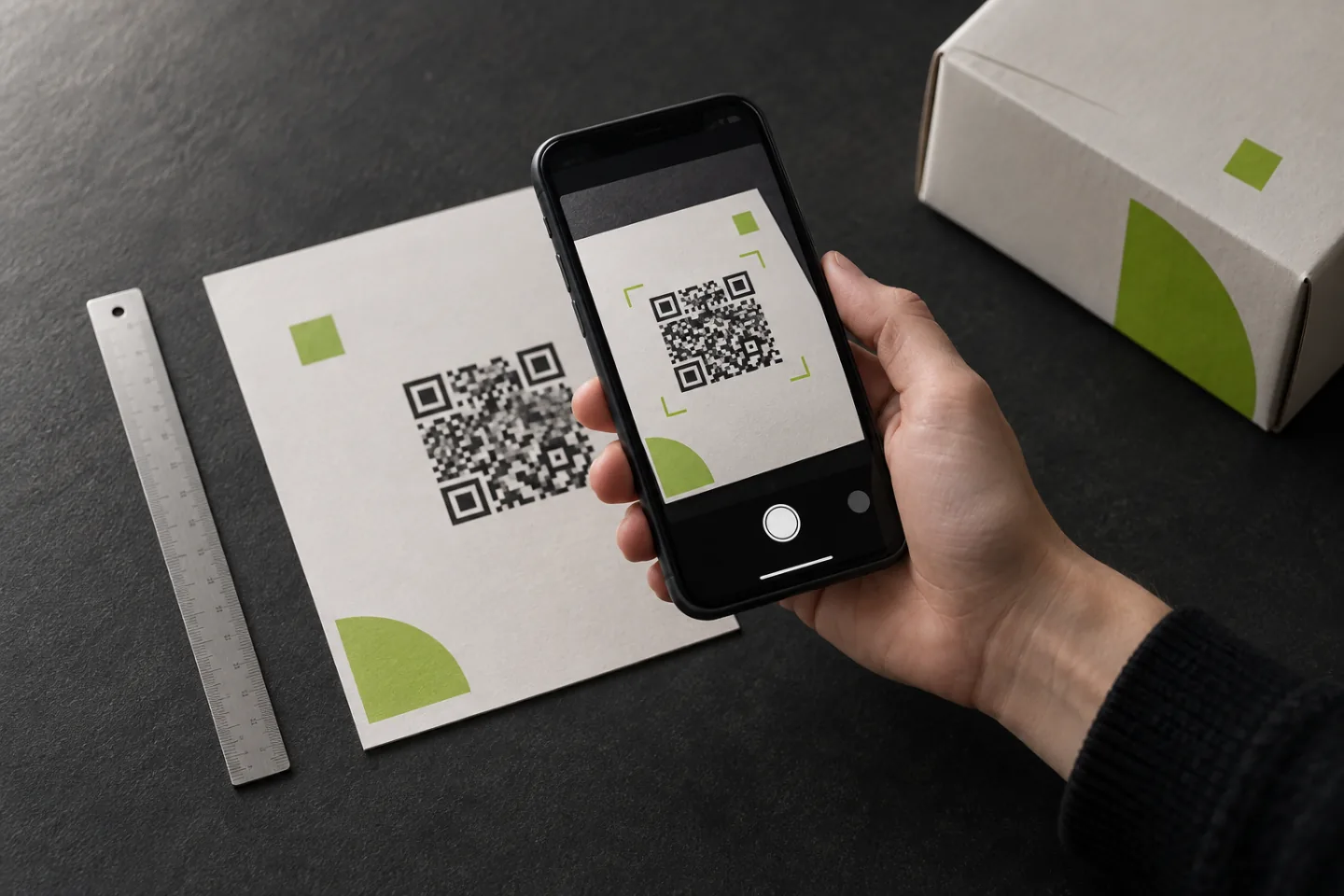
Scanning a code on your laptop screen is a useful first check. It does not verify the printed result. Print the approved artwork at its actual size, including its background and nearby text. Test with the phones' normal camera apps and open the detected link.
| Check | Expected result |
|---|---|
| iPhone camera | The correct App Store listing opens; the app is available in your target region. |
| Android camera | The correct Google Play listing opens; the package belongs to your app. |
| Desktop browser | The typed link opens your chosen website or a page with download options. |
| App already installed | The result matches your setup: a store listing for basic routing, or the configured in-app destination for native links. |
| Final printed proof | Both phones scan the actual artwork at its intended distance, angle, and lighting. |
| After changing a destination | The same printed code reaches the updated destination. |
Repeat the scan over mobile data as well as Wi-Fi. For packaging, test the code on the assembled package. For a poster, stand where someone would actually notice it. Record the device, print size, conditions, and final destination so another person can repeat the check.
Add a readable fallback URL below the code and tell people what they will get, for example: "Scan to download the app." Keep that text outside the quiet zone. Someone who cannot scan should still have a way forward.
4. Decide what you want to measure
If you reuse exactly the same URL on a flyer and a package, the link alone cannot tell you which placement sent a visitor. Use separate smart links for placements you need to compare, with names such as "Launch flyer" and "Package insert." That also lets you change one placement's destination independently. Check your plan's link and tracking limits before creating the campaign.
Keep three events separate: the camera recognises a QR code, a person opens its URL, and an app is downloaded. A redirect service sees the link request, not the camera preview. Click counts are not unique people or confirmed installs; repeated visits and automated requests can affect counts depending on filtering.
For download measurement, use the stores' reporting tools or an attribution integration that supports your use case. Apple provides campaign links in App Store Connect for campaign reporting, subject to its data availability and privacy rules. Do not assume that adding a generic tracking parameter to your smart link automatically attributes an install.
5. Send the files and test results to your printer
- The final SVG or PNG and the approved print layout.
- The intended physical size, including the quiet zone.
- The exact encoded URL and the expected iPhone, Android, and desktop destinations.
- The printed-proof check results and the date they were recorded.
- The person responsible for keeping the link active and updating its destinations.
Keep the approved file with your campaign assets. If the printer resizes the code, changes its colour, or moves it onto a fold, ask for another proof. After delivery, scan one item from the actual batch.
Copy this proof record
Save one completed record beside the final artwork. It makes a later destination change or reprint verifiable by someone other than the designer.
Campaign / placement:
Encoded URL:
Artwork filename and revision:
Printed QR size (including quiet zone):
Material and finish:
iPhone test, device / OS / result:
Android test, device / OS / result:
Desktop fallback result:
Tested by / date:
Approved for print by / date:
Common questions
Can I change the destination after printing?
Yes, if the printed code contains a smart link whose destinations you can edit. The QR image and encoded URL stay the same. A QR code pointing directly to an old store listing cannot be rewritten on paper.
Will the code open my app if it is already installed?
Basic store routing sends visitors to the configured store. Opening an installed app requires native-link setup; continuing to a screen after installation is a separate deferred-linking requirement. Read the smart links vs deep links guide before promising either behaviour in your campaign.
Does a printed QR code expire?
The symbol has no built-in expiry date. The URL behind it can still stop working if a link is disabled, a domain lapses, or a service becomes unavailable. Keep ownership of the link and check it while the printed material is in circulation.
Prepare your app download QR code
Have a smart link already? Paste it into the generator and download the artwork, then prepare its colours and quiet zone for print as described above. Need one URL for both stores? Create the link first.