App launch guide ·
One App Link for Every Store, with a Web Fallback
A smart app download link gives your audience one URL. In appqr.io, iPhone visitors go to your App Store listing, Android visitors go to Google Play or a configured alternative store, and desktop visitors go to the web destination you choose. You can share that same link in a social bio, an email, or a website button.
By the appqr.io team · 6 min read
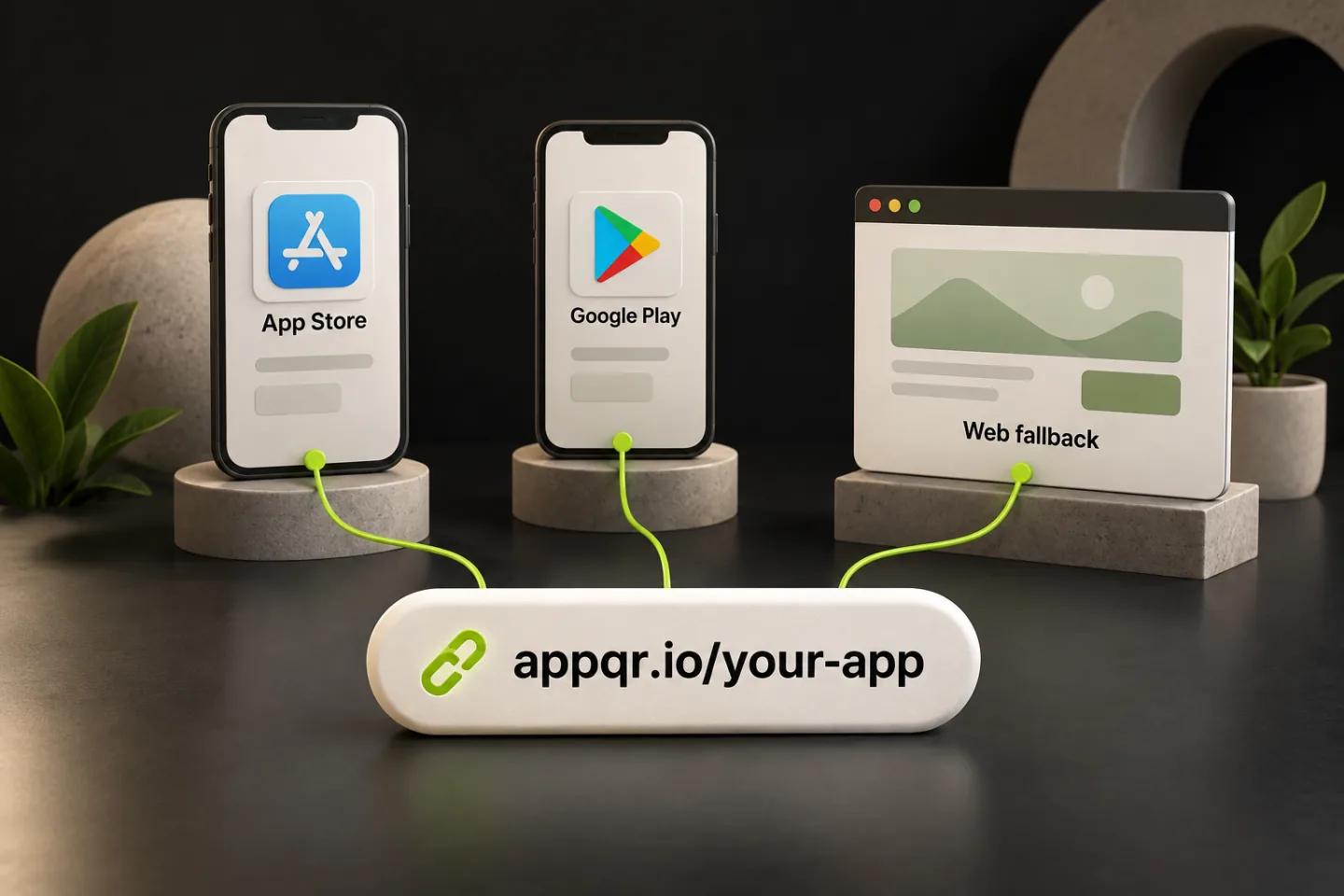
1. Map the destinations behind your link
Start with the public listing for the same app in each store. A link to your developer profile, a private beta, or an unrelated app can look plausible in a dashboard and still send launch traffic to the wrong place. Google documents the Google Play listing URL format:
https://play.google.com/store/apps/details?id=YOUR_PACKAGE_NAME
Add your App Store URL, your Google Play URL, and your desktop URL. If you also publish in Huawei AppGallery, Samsung Galaxy Store, or Amazon Appstore, add those destinations where relevant. appqr.io routes using device and browser information; it cannot check every store installed on a phone.
| Detected visitor | Destination |
|---|---|
| iPhone or iPad | Your App Store listing |
| Android | Your Google Play listing |
| Huawei, Samsung browser, or Amazon device | The matching store URL when configured; otherwise Google Play |
| Desktop or an unrecognised device | Your configured desktop/web URL; otherwise your App Store URL |
For the dashboard steps, follow our one-link setup guide.
2. Give desktop visitors a useful next step
Someone reading your launch email on a laptop is still interested in your app. Choose a web fallback that helps them continue from that device. Set it explicitly in the link's desktop destination field; leaving that field empty sends desktop and unrecognised devices to your App Store URL instead.
Your product works on the web
Send visitors to your web app's sign-in or getting-started page. They can use the product immediately.
Your product is mobile-only
Send visitors to a focused app page with a short explanation and clearly labelled store buttons for continuing on their phone.
For example, a language-learning app with a browser version could open its web sign-in page on desktop. A mobile-only fitness app could show what the app does and both download options. Avoid a generic corporate homepage that makes visitors search for the app again.
Here, "web fallback" means the destination for desktop or unrecognised devices. It does not automatically catch an unavailable store listing, a regional restriction, or a failed installation. Check store availability separately for the markets you target.
3. Use one address across your launch
Put the public smart link behind your website's "Get the app" button, in your social bio, and in your launch email. The person writing the campaign does not need to maintain separate iPhone and Android versions of each message. The link handles the destination after the visitor opens it.
- Social bio: make the action clear, then test the link inside that social app's browser.
- Email: use the same download button for mobile and desktop readers; verify both journeys from a delivered test email.
- Website: link the main app CTA to your smart link and keep the desktop destination focused on the next step.
- Partners: give them the public URL and the approved button text so they can share it without rebuilding your routing.
If you need a poster or packaging insert, a QR code is another way to open the same link. The underlying destination setup stays the same. Use the print checklist when preparing that artwork.
4. Test the journeys your campaign will use
Open the published link from the actual placement, not just the dashboard preview. Record the expected destination and the result.
- On an iPhone, check the App Store app name and publisher.
- On an Android phone, check the Google Play listing and package name.
- For each alternative store you configured, test a relevant device and browser combination.
- On a computer, confirm the web fallback loads and its sign-in or download buttons work.
- Open the delivered email or social post on mobile to check its in-app browser behaviour.
- Verify listing availability in your target markets before scheduling the campaign.
Basic store routing does not open a particular screen inside an installed app. Native links and deferred journeys need additional configuration. Our smart links vs deep links guide explains which behaviour to choose before you promise it in a campaign.
5. Update destinations and measure clicks
One shared URL is convenient, but that URL alone cannot tell you whether someone found it in a bio or an email. If you need a direct comparison between placements, create a separate smart link for each placement, with the same store and web destinations. Each still works across devices. Check your plan's link limits first.
Treat a click as a request to open the link. It is not proof of an installation, a new user, or a purchase. Use store reporting or a suitable attribution integration for those later steps, and keep those numbers separate from redirect traffic.
When a store listing or web destination changes, edit the destination behind your existing link. Keep its public URL active for as long as the campaign is circulating. Assign an owner and repeat the device checks after any destination change.
Give your next launch one download link
Add your store listings, choose a useful web fallback, and test the link before sharing it with your audience.
Create your free link